
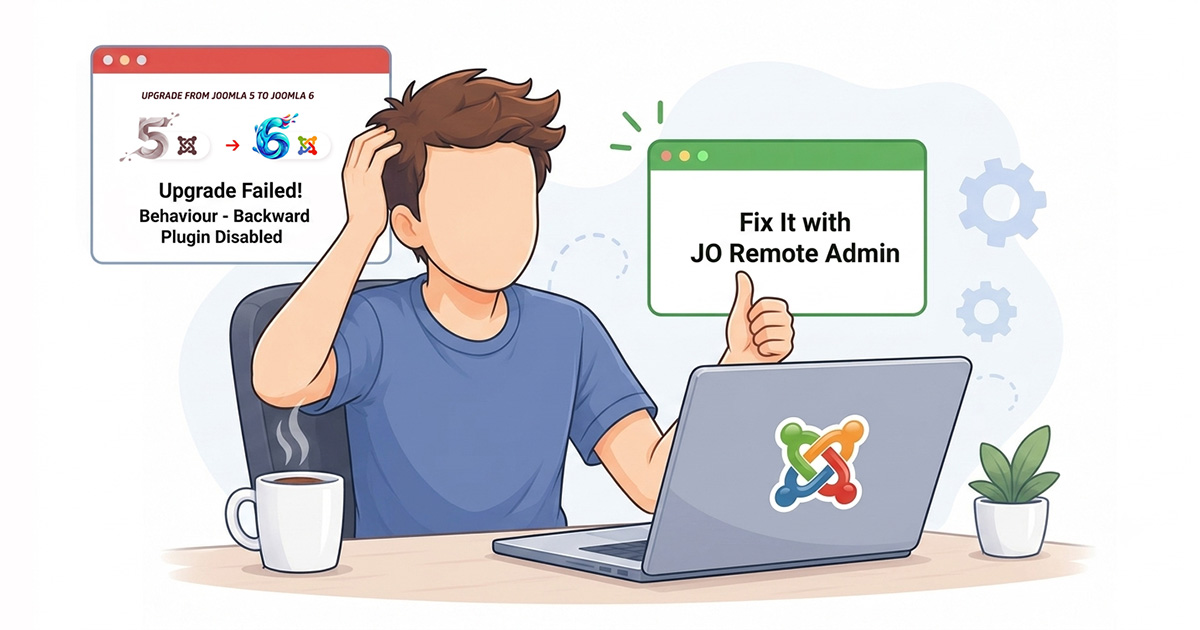
Upgrading from Joomla 5 to Joomla 6 is usually a straightforward process. However, on some websites, disabling the Behaviour - Backward Compatibility plugin can immediately break the Joomla administrator area.
During the upgrade, Joomla may display a message instructing you to disable the Behaviour - Backward Compatibility plugin. While this is the correct step, some third-party extensions still rely on Joomla's legacy APIs. As a result, disabling the plugin can trigger a fatal error, leaving you locked out of the Joomla backend.
When this happens, you can no longer enable or disable plugins from the Joomla administrator area. The traditional solution is to access the Joomla database using tools such as phpMyAdmin and manually change the plugin's status. For many beginner and intermediate users, this process can be confusing and time-consuming.
JO Remote Admin offers a much simpler solution.
Simply upload the JO Remote Admin script to your Joomla website's root directory using FTP or your hosting provider's File Manager. Then log in with your Joomla Super User account to remotely manage your plugins—even if the Joomla backend is completely inaccessible.
In this video, you'll learn how to:
- Recover access to a broken Joomla administrator area.
- Enable Joomla Debug Mode to identify the plugin causing the issue.
- Re-enable the Behaviour - Backward Compatibility plugin to regain access to the backend.
- Temporarily disable the incompatible extension.
- Successfully complete the Joomla 5 to Joomla 6 upgrade.
If your Joomla website becomes inaccessible after disabling the Behaviour - Backward Compatibility plugin, this video demonstrates a quick, safe, and database-free recovery method using JO Remote Admin.