
A favicon is a small but essential branding element for any Joomla website. It appears in browser tabs, bookmarks, and mobile shortcuts, helping users instantly recognize your site.
In this guide, you’ll learn how to add a favicon to Joomla without editing template files, using:
🎨 favicon.io – an online favicon generator
🧩 JO Custom HTML module with the Anything to Head feature
This method is update-safe, beginner-friendly, and works perfectly with Joomla 4, 5, and 6.
Why Adding a Favicon Is Important
✔️ Improves brand recognition
✔️ Makes your site look more professional
✔️ Helps users identify your site among multiple browser tabs
✔️ Enhances trust and usability
✔️ Improves mobile and bookmark appearance
For modern Joomla websites, adding a favicon is no longer optional—it’s essential.
Step 1: Create a Favicon Using favicon.io
- Visit https://favicon.io/favicon-generator/
- Choose your favicon type:
- Text (ideal for initials or short brand names)
- Image
- Emoji
- Customize the font, background color, and icon style
- Click Download
The downloaded ZIP file includes:
✔️ favicon.ico
✔️ PNG icons in multiple sizes (16×16, 32×32, 180×180)
✔️ site.webmanifest
✔️ Ready-to-use HTML code
Step 2: Upload Favicon Files
- Extract the downloaded ZIP file
- Upload the favicon files to your site, preferably to:
/images/favicon/You can upload the files using Joomla Media Manager or FTP. Storing favicon files in a dedicated folder makes future updates easier.
Step 3: Add the Favicon Using JO Custom HTML
✔️ No template overrides required
✔️ Safe during Joomla and template updates
✔️ Centralized head tag management
✔️ Ideal for multi-template Joomla sites
Install the JO Custom HTML module if you haven’t already:
- Go to Extensions → Manage → Install
- Upload the JO Custom HTML module package and install it
- Create a new JO Custom HTML module: Go to Extensions → Site Modules → New → JO Custom HTML
- Open the Anything to Head tab
- Paste the following code into the Anything to Head tab:
<link rel="apple-touch-icon" sizes="180x180" href="/images/favicon/apple-touch-icon.png"> <link rel="icon" type="image/png" sizes="32x32" href="/images/favicon/favicon-32x32.png"> <link rel="icon" type="image/png" sizes="16x16" href="/images/favicon/favicon-16x16.png"> <link rel="manifest" href="/images/favicon/site.webmanifest">![add favicon to Joomla using JO Custom HTML]()
-
Set module options:
- Position: debug
- Menu Assignment: On all pages
- Status: Published
- Save the module.
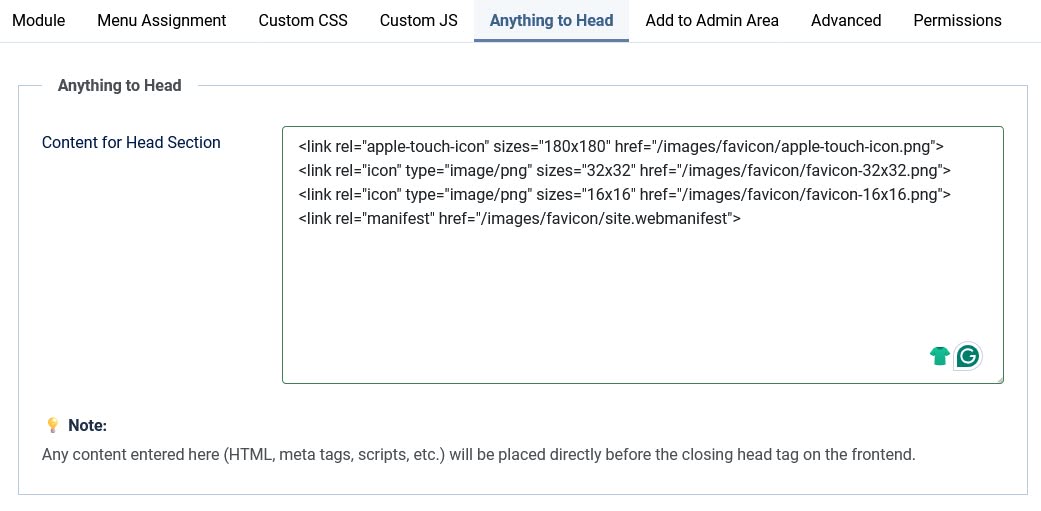
✅ Now your favicon code is injected into the on all pages safely, without editing template files.
Step 4: Clear Cache and Verify
✔️ Clear Joomla cache
✔️ Clear browser cache or use incognito mode
✔️ Check browser tabs, mobile view, and bookmarks
Final Thoughts
✔️ Works with Joomla 4, 5, and 6
✔️ No template editing required
✔️ Fully update-safe
✔️ Easy to maintain long-term
Using favicon.io together with JO Custom HTML’s “Anything to Head” feature is a clean and reliable way to add a favicon to your Joomla website.