JO Header Footer Override plugin is a powerful Joomla extension designed to give you full control over the header and footer areas of your website. With this plugin, you can seamlessly remove or replace headers and footers with custom module positions, providing unparalleled flexibility for your site's layout.
For Cassiopeia and Helix Ultimate, it works out of the box: the plugin automatically detects your template and applies the appropriate selectors, so you don't need to find or enter any CSS classes or IDs. For other templates, simply enter your own selectors.
This plugin does not handle the design part — you can use a page builder, any suitable module, or custom HTML to build the header and footer content. Instead, it focuses on managing where and how these custom headers and footers are injected into your site.
Key Features:
Template Auto-Detection:
★ Automatically detects Cassiopeia and Helix Ultimate, including their child templates, and applies the correct header, footer, and injection selectors.
★ Shows the detected template and the selectors currently in use directly in the plugin settings.
★ Unrecognised templates automatically use the manual selector fields, making the plugin compatible with virtually any Joomla template.
★ Switch between Auto-detect and Manual mode at any time.
Header and Footer Removal:
★ Easily toggle the removal of headers and footers on your website.
★ In Manual mode, use CSS selectors to target specific header and footer elements for removal.
★ Supports IDs, classes, multiple classes, and tag-qualified selectors such as #id, .class, .class1.class2, tag.class, and tag#id.
Custom Module Positions:
★ Inject custom header and footer modules using the custom-header and custom-footer module positions.
★ Simply enter the position name in the Position field when editing a module.
★ Place custom modules inside any element of your template, or leave the injection point blank to add them after body for the header and before /body for the footer.
Setup Placeholder:
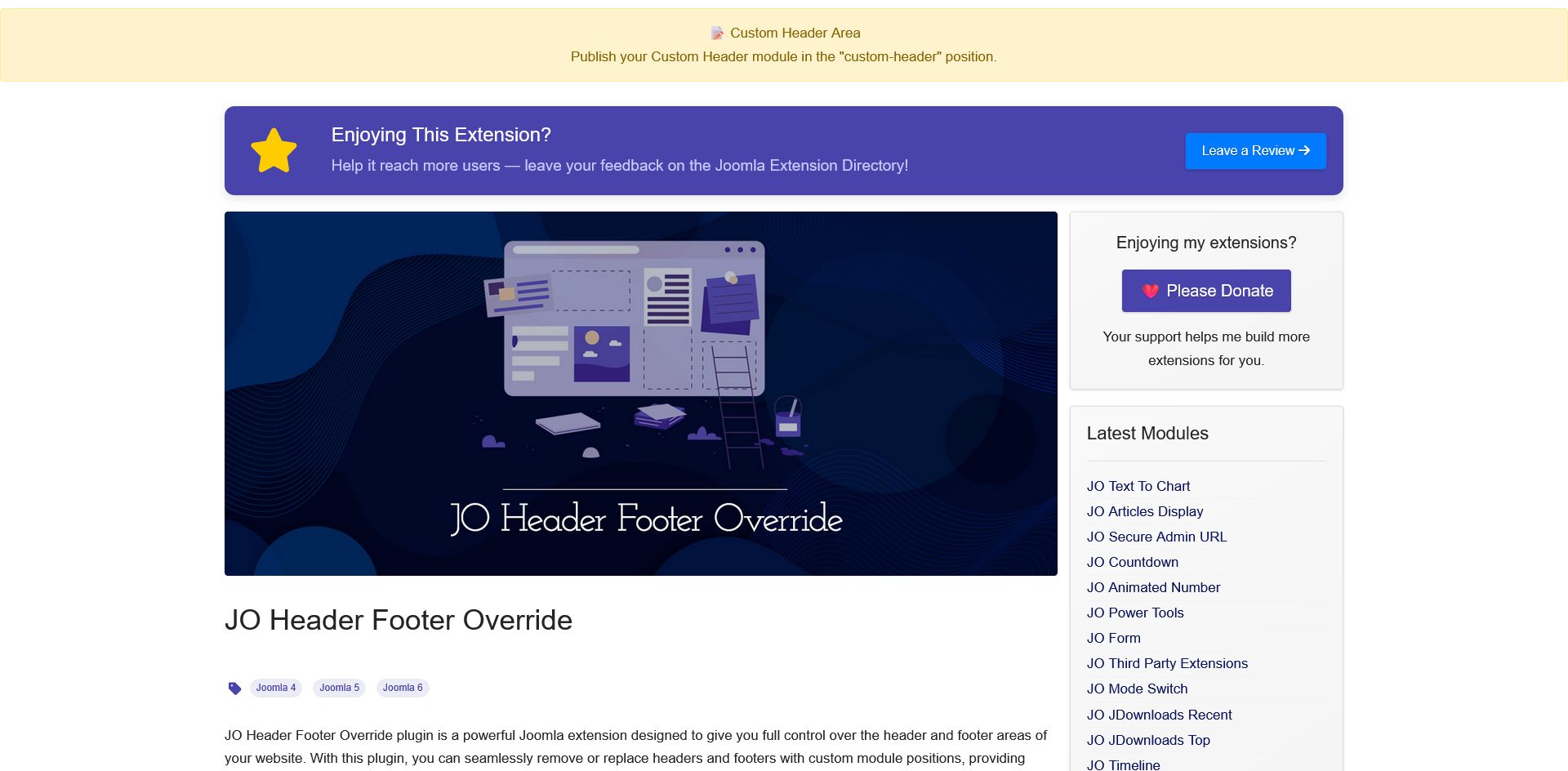
★ When no module is published in a configured position, a helpful notice shows exactly what you need to do.
★ Choose who can see the notice: Everyone, Managers Only, or Never for finished live sites.
Menu Item Restriction:
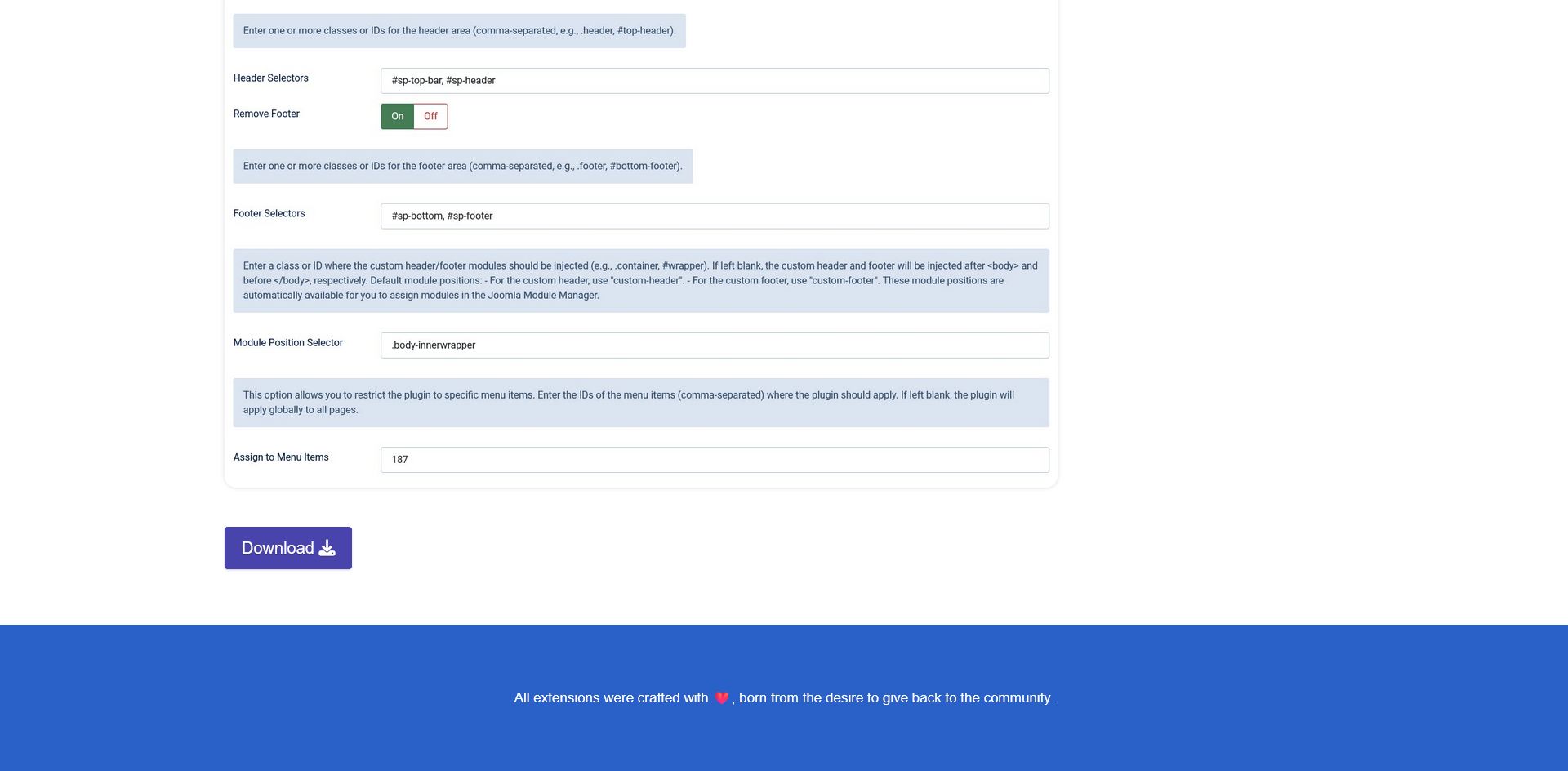
★ Restrict the plugin's functionality to specific menu items by entering comma-separated menu item IDs.
★ Leave the field blank to apply the plugin globally across all pages.
★ Ideal for creating unique layouts for landing pages, blog posts, or other specific sections of your site.
Safe and Lightweight:
★ Only the targeted header and footer elements are modified; the rest of your page HTML is left exactly as it is.
★ Runs only on normal frontend pages and skips popups, print views, and JSON or RSS output.
★ Built natively for Joomla 6.
User-Friendly Interface:
★ Intuitive backend configuration with clear descriptions and static notes for each setting.
★ Supports Joomla's conditional fields (showon) for a streamlined user experience.
Usage Examples:
Scenario 1: Cassiopeia Template
Set Selector Mode to Auto-detect. The plugin automatically detects Cassiopeia, removes its header and footer, and places your custom-header and custom-footer modules after body and before /body.
Manual equivalent, for reference:
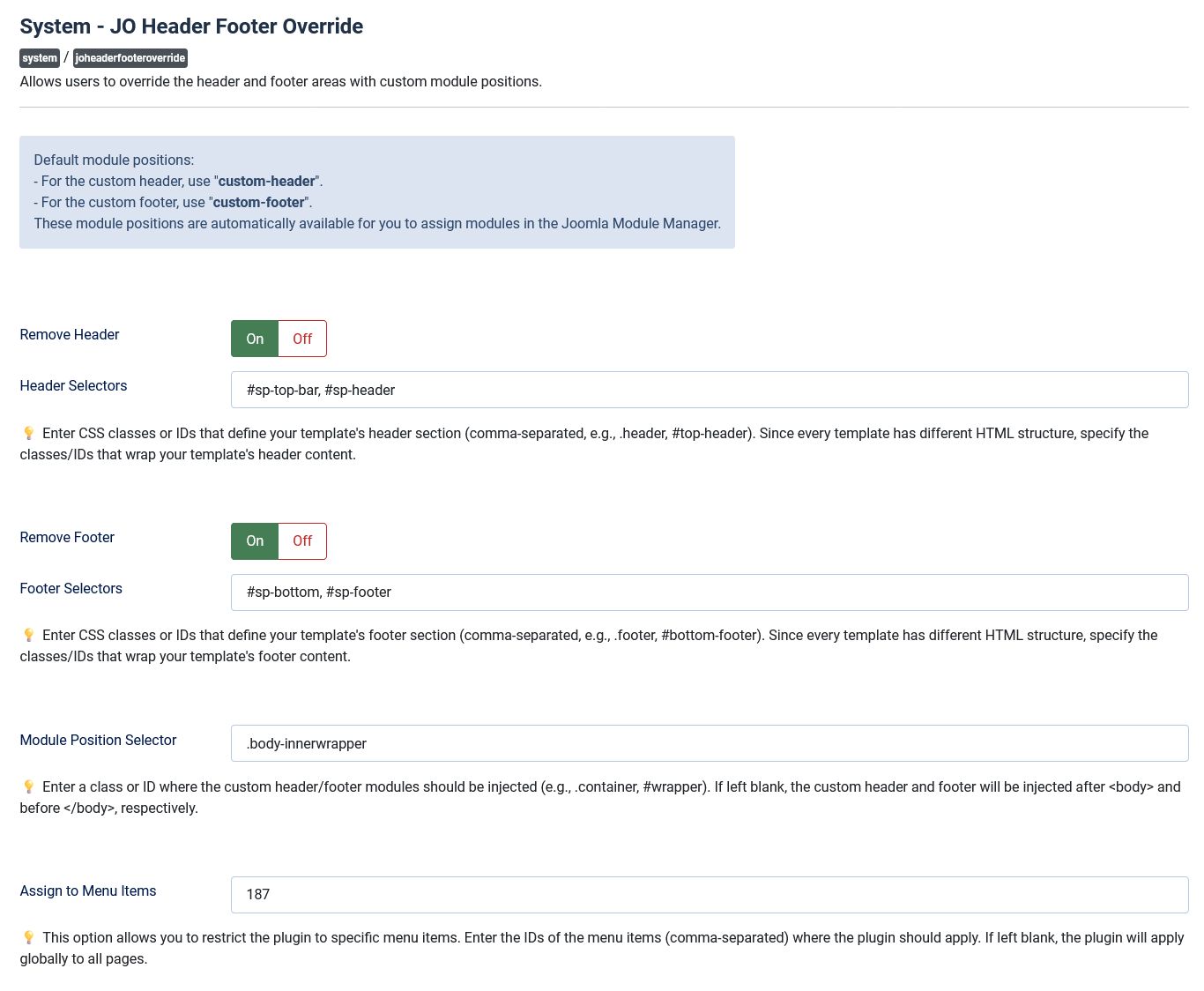
Header Selectors:

Use the class .container-header to remove the Cassiopeia header.
Footer Selectors:

Use the class .container-footer to remove the Cassiopeia footer.
Module Position Selector:
Leave this blank, as the Cassiopeia header and footer appear directly after body and before /body.
Scenario 2: Helix Ultimate Template
Set Selector Mode to Auto-detect. The plugin automatically detects Helix Ultimate, removes the top bar, header, bottom, and footer, and places your custom modules inside the page wrapper.
Manual equivalent, for reference:
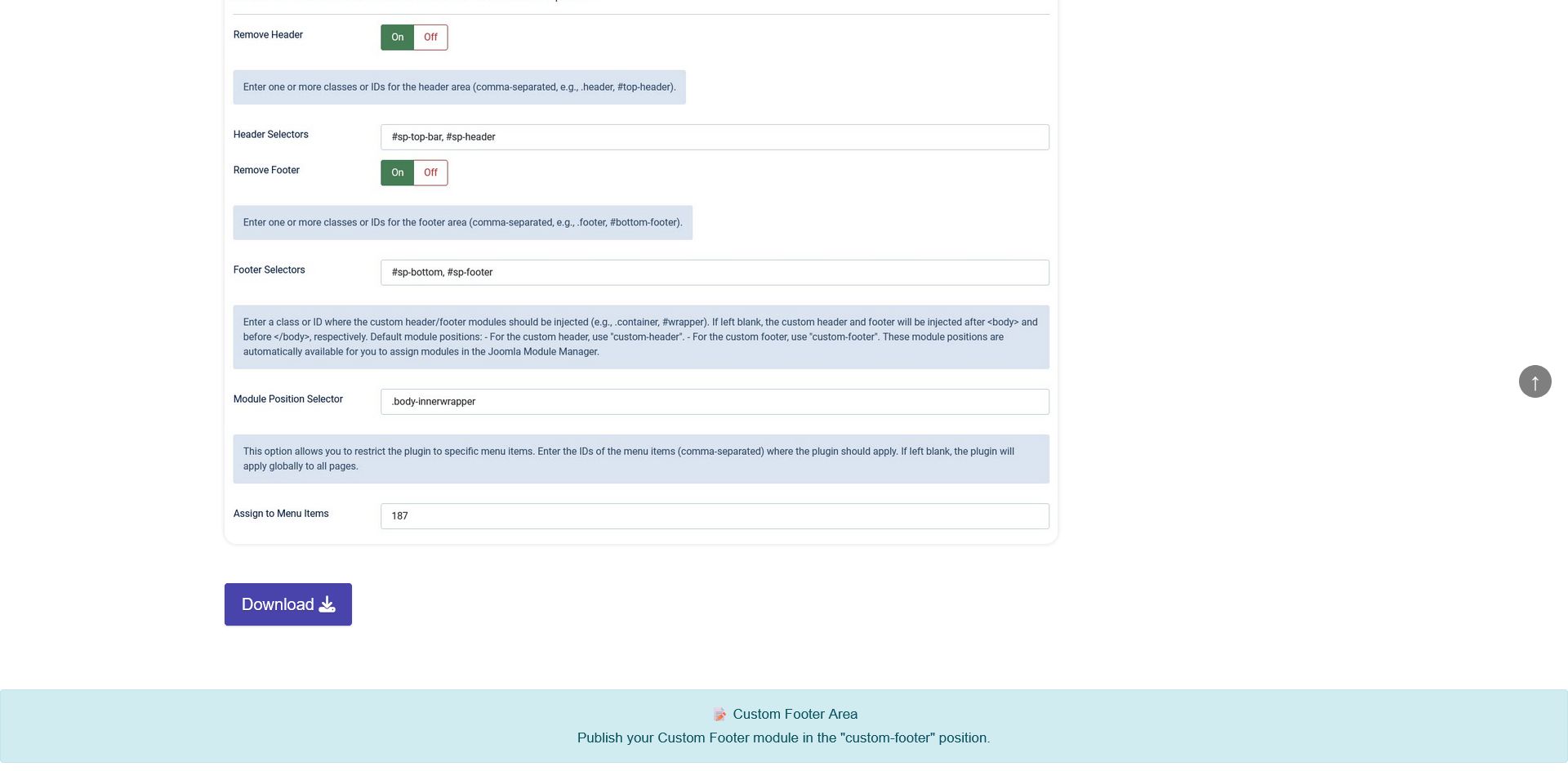
Header Selectors:

Use the IDs #sp-top-bar and #sp-header (separated by a comma) to completely remove the Helix Ultimate header.
Footer Selectors:

Use the IDs #sp-bottom and #sp-footer (separated by a comma) to completely remove the Helix Ultimate footer.
Module Position Selector:
The Helix Ultimate header and footer appear after 
Use the class .body-innerwrapper to assign the module positions custom-header and custom-footer.
Scenario 3: Any Other Template
Set Selector Mode to Manual, or leave it on Auto-detect. If the template is not recognised automatically, the plugin will use the manual selector fields.
Enter the CSS selectors that wrap your template's header and footer. Optionally, enter the selector of the element where your custom modules should be injected.
The plugin supports IDs, classes, multiple classes, and tag-qualified selectors, such as #id, .class, .class1.class2, tag.class, and tag#id.
Scenario 4: Restrict to Specific Menu Items
To apply the header and footer override only to specific pages, enter their menu item IDs as comma-separated values.
For example:
101, 105, 120
Leave the field blank to apply the plugin globally across all frontend pages.
Upgrading from an Earlier Version?
Your existing settings are preserved when upgrading. The plugin remains in Manual mode, ensuring that your website continues to look and behave exactly as it did before the update.
You can switch to Auto-detect whenever you are ready to take advantage of automatic template detection.
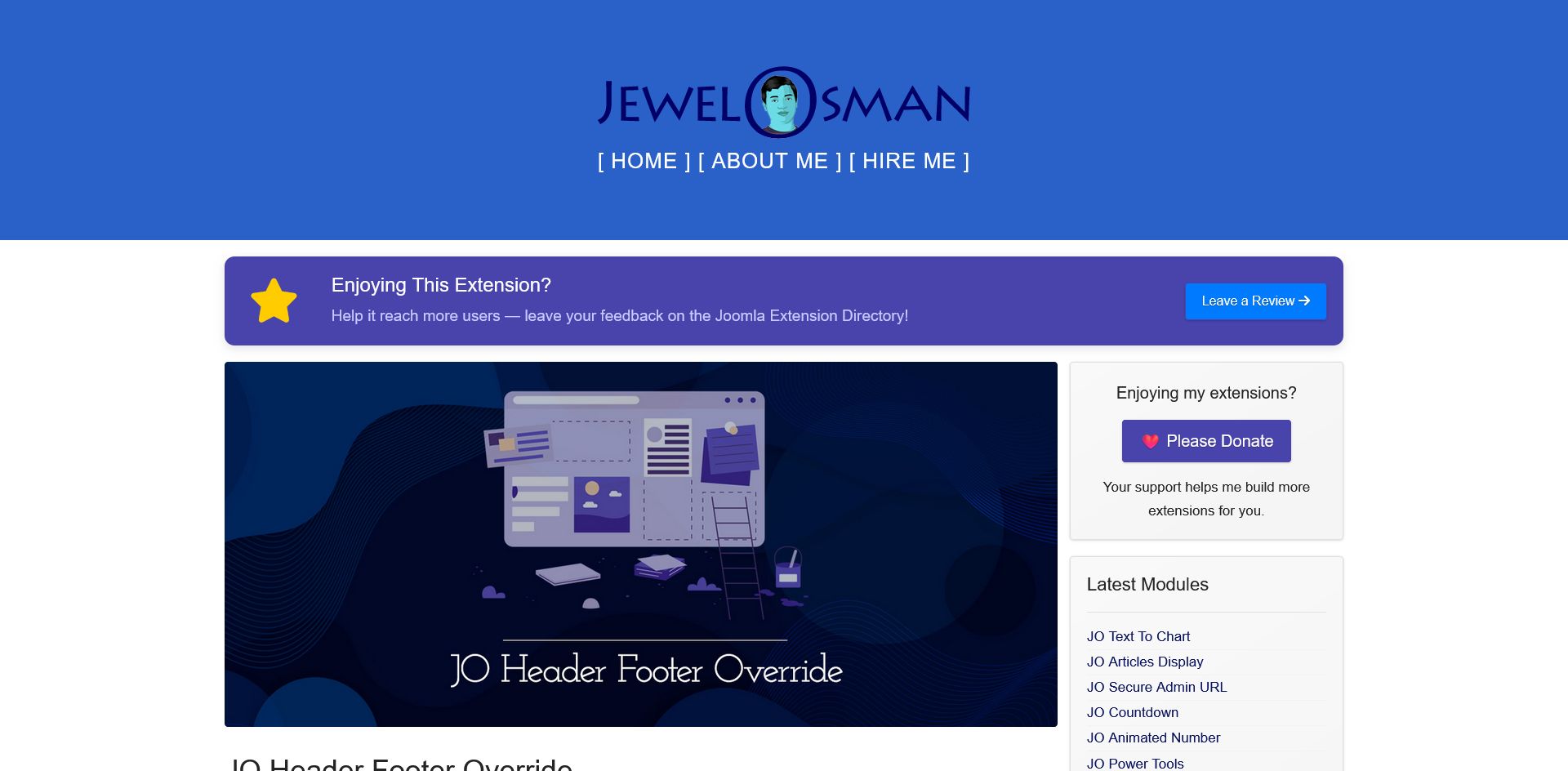
Frontend Demo:
Check the custom header 👆 and custom footer 👇